Creating a Database Restoration
Restoring a Database on a Test EC2 Instance
PostgreSQL 16 is a major release of the open-source relational database system, featuring new functionalities and improvements. These enhancements include better monitoring, improved performance, logical replication, new server configurations, and security updates.
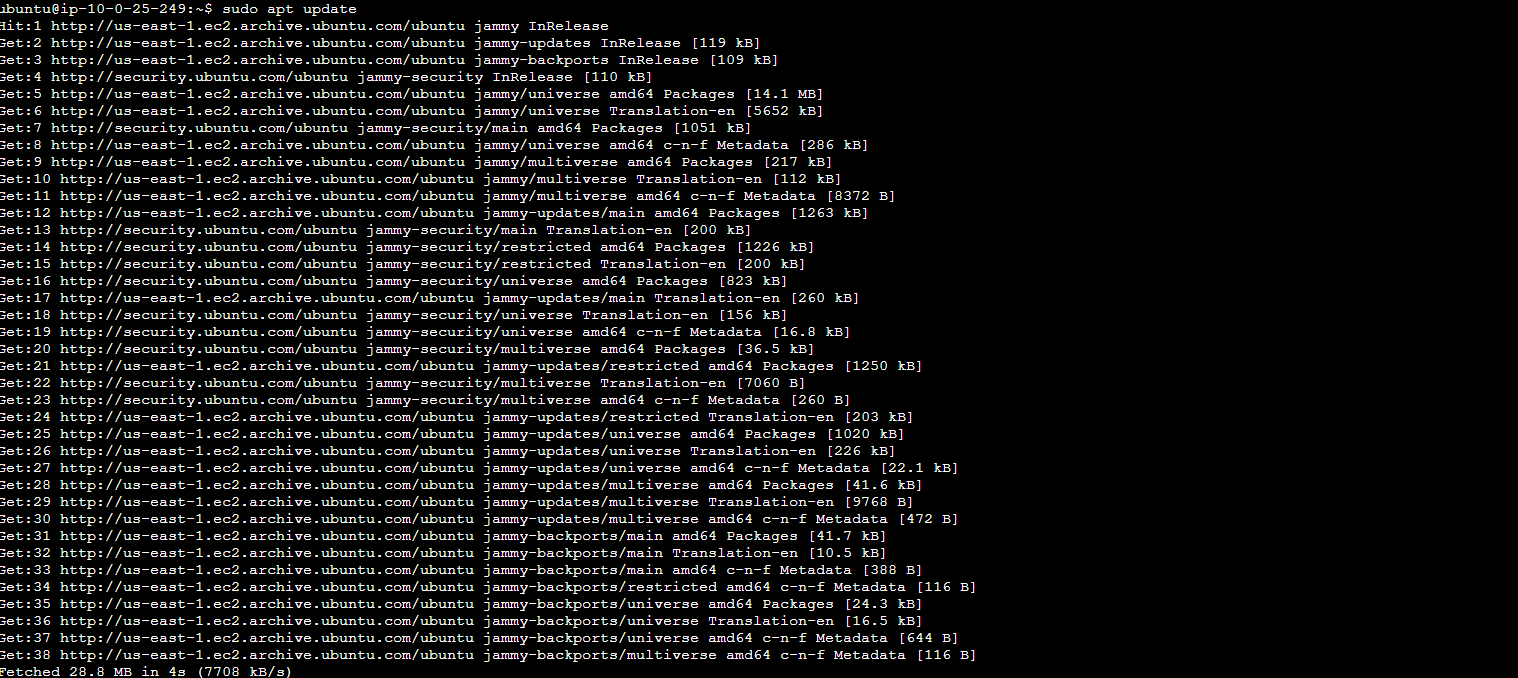
- Update package index:
sudo apt update - Install necessary packages:
sudo apt install gnupg2 wget vim - Add PostgreSQL 16 repository:
sudo sh -c 'echo "deb http://apt.postgresql.org/pub/repos/apt $(lsb_release -cs)-pgdg main" > /etc/apt/sources.list.d/pgdg.list' - Import the repository signing key:
curl -fsSL https://www.postgresql.org/media/keys/ACCC4CF8.asc | sudo gpg --dearmor -o /etc/apt/trusted.gpg.d/postgresql.gpg - Update package list again:
sudo apt update - Install PostgreSQL 16:
sudo apt install postgresql-16 postgresql-contrib-16 - Start and enable the PostgreSQL service:
sudo systemctl start postgresqlsudo systemctl enable postgresql - Confirm installation:
psql –version - The output should be like
psql (PostgreSQL) 16.0 (Ubuntu 16.0-1.pgdg22.04+1). - Configure PostgreSQL 16
- Allow remote connections by editing postgresql.conf:
sudo nano /etc/postgresql/16/main/postgresql.conf - Change listen_addresses to
*. - Configure md5 password authentication in pg_hba.conf for remote connections:
sudo sed -i '/^host/s/ident/md5/' /etc/postgresql/16/main/pg_hba.confsudo sed -i '/^local/s/peer/trust/' /etc/postgresql/16/main/pg_hba.confecho "host all all 0.0.0.0/0 md5" | sudo tee -a /etc/postgresql/16/main/pg_hba.conf - Restart PostgreSQL to apply changes:
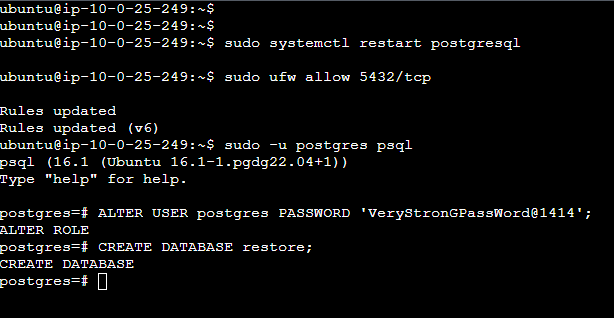
sudo systemctl restart postgresql - Allow PostgreSQL port through the firewall:
sudo ufw allow 5432/tcp - Connect to PostgreSQL:
sudo -u postgres psql - Set a password for the postgres user:
ALTER USER postgres PASSWORD 'VeryStronGPassWord@1414'; - Create and Populate a New Database in PostgreSQL
- Once you have successfully connected to the PostgreSQL database server using the psql command-line tool, you are ready to start creating a database and a table. Below, you will find detailed instructions on how to create a new database, add a table to it, and insert data into the table.
- Create Database: To create a new database named restore, execute:
CREATE DATABASE restore; - Connect to Database: To switch to the newly created restore database, use:
\c restore